






 Microsoft Copilot


Copilot licence reclamation is the process of measuring which Microsoft 365 Copilot seats are actually used and recovering the ones that are not. A Copilot licence has no end-of-life trigger, so a seat stays assigned and billed until someone removes it. A reclamation cycle makes that removal routine: agree a usage threshold, report usage by department, notify the people concerned and reclaim on a fixed schedule.
In short
- An unused Copilot seat is billed every month until someone removes it.
- Agree what counts as used before you measure, and agree it with the budget owner.
- Licences on disabled accounts are the quickest win; idle seats on active users need a notice first.
- Run the cycle every quarter and give reclaimed seats to people waiting for one.
Why seats drift into disuse
Copilot rollouts assign seats in waves: a pilot group, then departments, then whoever asks. Some people use Copilot every day. Others try it in the first weeks and stop. Some seats sit on accounts that were disabled when their owner left. Nothing in Microsoft 365 takes a seat back on its own, so each of those seats stays on the invoice.
Gartner estimates that in most organizations 40% of Copilot licences are actively used on a daily basis (Microsoft 365 Copilot and Agents: Assessing Impact and Value, 2026). The rest is not all waste, since some people use Copilot weekly to good effect, but it shows how much of the bill depends on a decision nobody is asked to make.
Step by step
Five steps turn licence clean-up into a quarterly routine owned jointly by IT and the budget holder.
-
Define what used means
Set a usage threshold before you measure anything, such as Copilot activity in the last 30 days, and apply it to every department in the same way. A seat used once a month is a different case from a seat used every day.
Tip: Agree the threshold with the budget owner as well as IT, so later reclamation decisions are not contested.
-
Report usage by department and owner
Attribute every Copilot seat to a person, a department and a cost center, and show its activity next to its cost, so the budget owner sees both together.
-
Sort seats into active, light and idle
Group seats against your threshold. Take licences on disabled accounts back at once, and treat idle seats on active accounts as candidates. The result is a specific, defensible list of seats to reclaim.
-
Notify and give a grace period
Tell each idle user, and their manager, that the seat will be reclaimed unless they use it within a fixed period, such as 14 days. This protects occasional users and leaves a record that makes the decision defensible.
-
Reclaim and reassign every quarter
Remove the seats that stayed idle after the grace period and assign them to people on the waiting list. Repeat each quarter, because the next wave of assignments drifts into disuse the same way the first one did.
Connectors in this How-to
Each connector page in the Rencore docs lists the objects, policies, reports and actions behind these steps.


Watch it in Rencore
Short narrated product guides that play in your browser, with no sign-in.
-
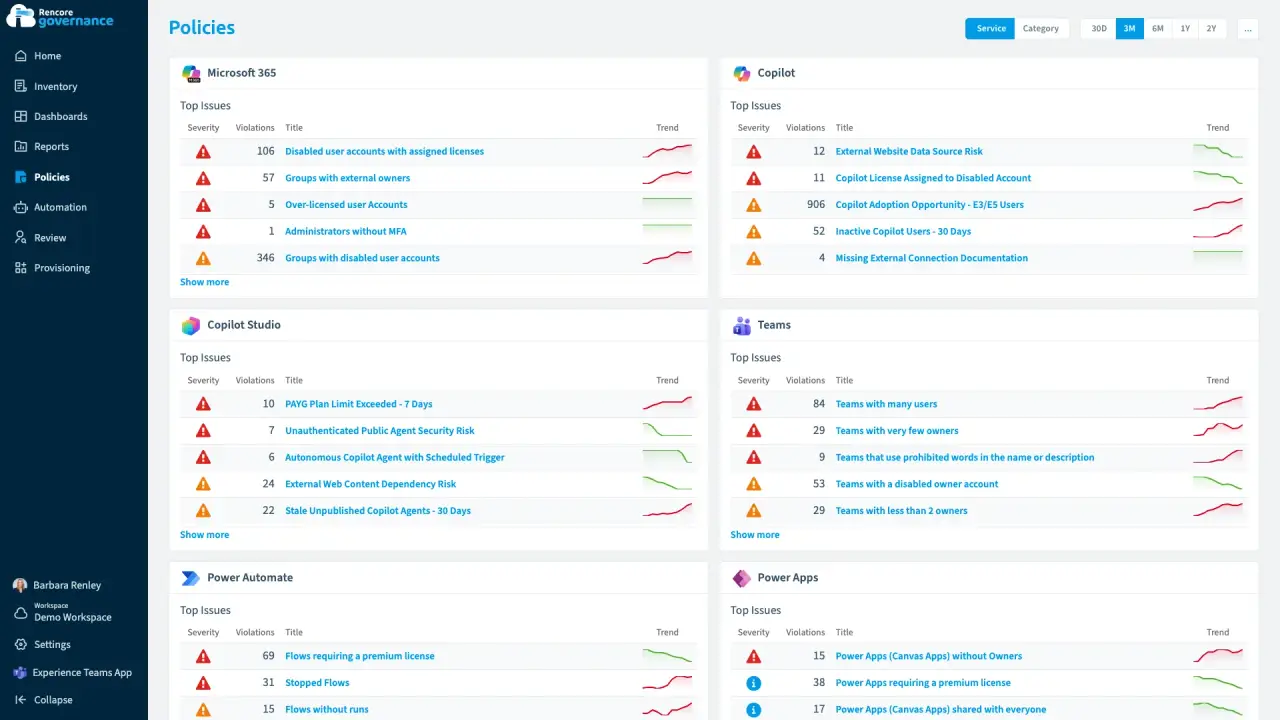
Copilot seats back from people who stopped using them
Length: 4 minCopilot licences stay on people who still work here but never open Copilot, and every idle seat is billed again each month.
- Copilot
- Microsoft 365
- Entra ID
- Licences & Costs
- AI Governance
- Policies
- Automation
-
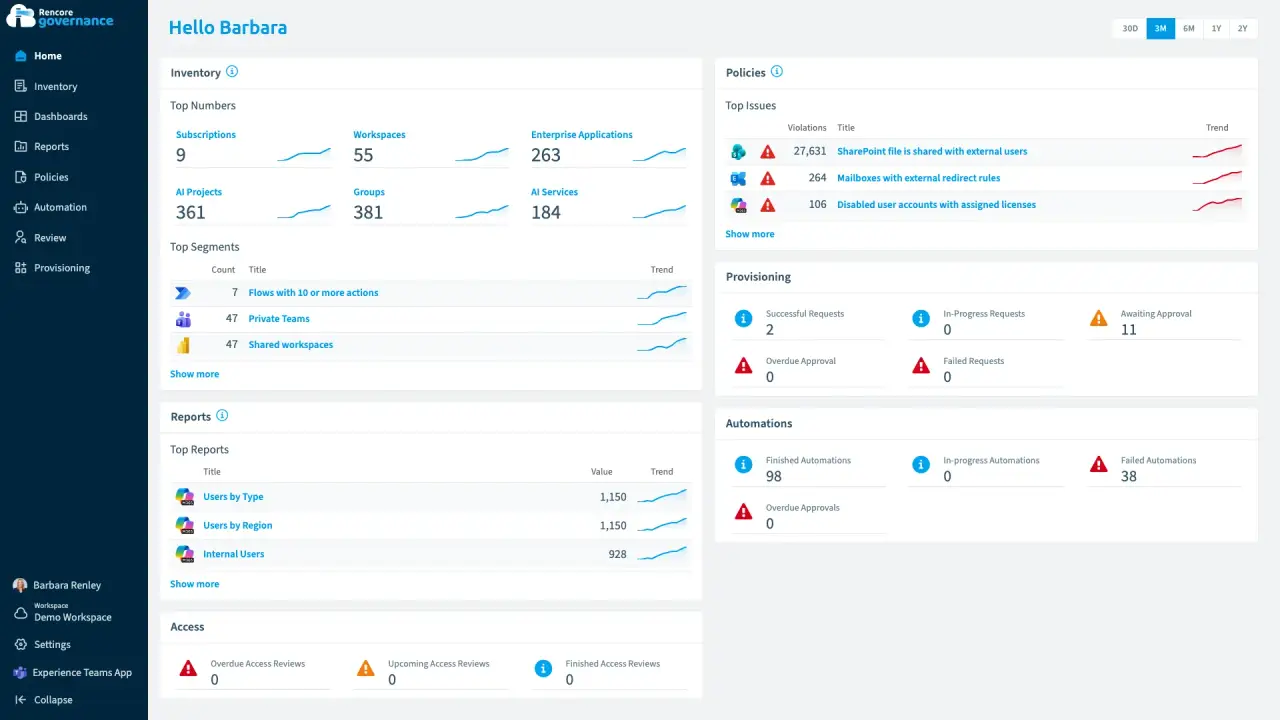
Licences on people who stopped working here
Length: 4 minLicences stay assigned to disabled accounts and keep landing on the invoice every month.
- Microsoft 365
- Entra ID
- Copilot
- Power BI
- Licences & Costs


Last updated 8 October 2026


