






 Microsoft Copilot


Data loss prevention monitoring in Microsoft 365 is the regular check that sensitive content cannot leave the tenant through paths your DLP policies do not see. Microsoft Purview DLP inspects content and blocks known patterns. Monitoring watches the conditions around it, such as external sharing, mail redirected to outside addresses and Power Platform connectors, and routes each finding to an owner by severity.
In short
- DLP policies need maintenance, because sharing, forwarding and connectors change every week.
- Data also leaves through configuration, such as a rule that forwards mail to an outside address.
- Rank findings by sensitivity and route each one to the owner who can fix it.
- Fix through approved, logged actions so the remediation is defensible.
Why DLP needs monitoring after the rollout
DLP is often treated as a project: write the policies, switch them on, move on. Exposure keeps moving after that. New sites are shared with partners, a user adds a rule that forwards mail to a private address, a maker builds a flow that copies files to an outside service. A tenant that met your standards last quarter may not meet them this quarter.
Microsoft Purview is the right place for content inspection and policy tips. The paths around it are configuration in SharePoint, OneDrive, Exchange and the Power Platform, and each lives in a different admin center. Monitoring brings those paths into one list with an owner for each finding.
Step by step
These five steps keep the paths around your DLP policies visible and closed.
-
Baseline where sensitive content sits and how it is shared
Record which sites and OneDrives hold sensitive content, using sensitivity labels, and how each is shared: external users, sharing links and extranet sites. This is the picture later checks compare against.
-
Watch the paths out of the tenant
Flag files shared with external users, OneDrives with externally shared files, mailboxes with redirect rules to external recipients, Power Apps shared with everyone and flows that use a connector you want to restrict.
Tip: A redirect rule to an outside address sends every new message out of the tenant. Check mailboxes with external redirect rules first.
-
Rank by sensitivity
Put labelled and confidential content first, and treat a site without a sensitivity label as a finding of its own, because nobody has decided how sensitive it is.
-
Fix with an audit trail
Remove sharing or quarantine the app through approved, logged actions, have the mailbox owner remove an external redirect rule, and inform each owner. Where the sharing is needed, replace it with named access and a review date.
-
Repeat on a schedule
Run the checks on a fixed cycle and have owners confirm what stays shared. Exposure returns as content is created and shared.
Connectors in this How-to
Each connector page in the Rencore docs lists the objects, policies, reports and actions behind these steps.

Watch it in Rencore
Short narrated product guides that play in your browser, with no sign-in.
-
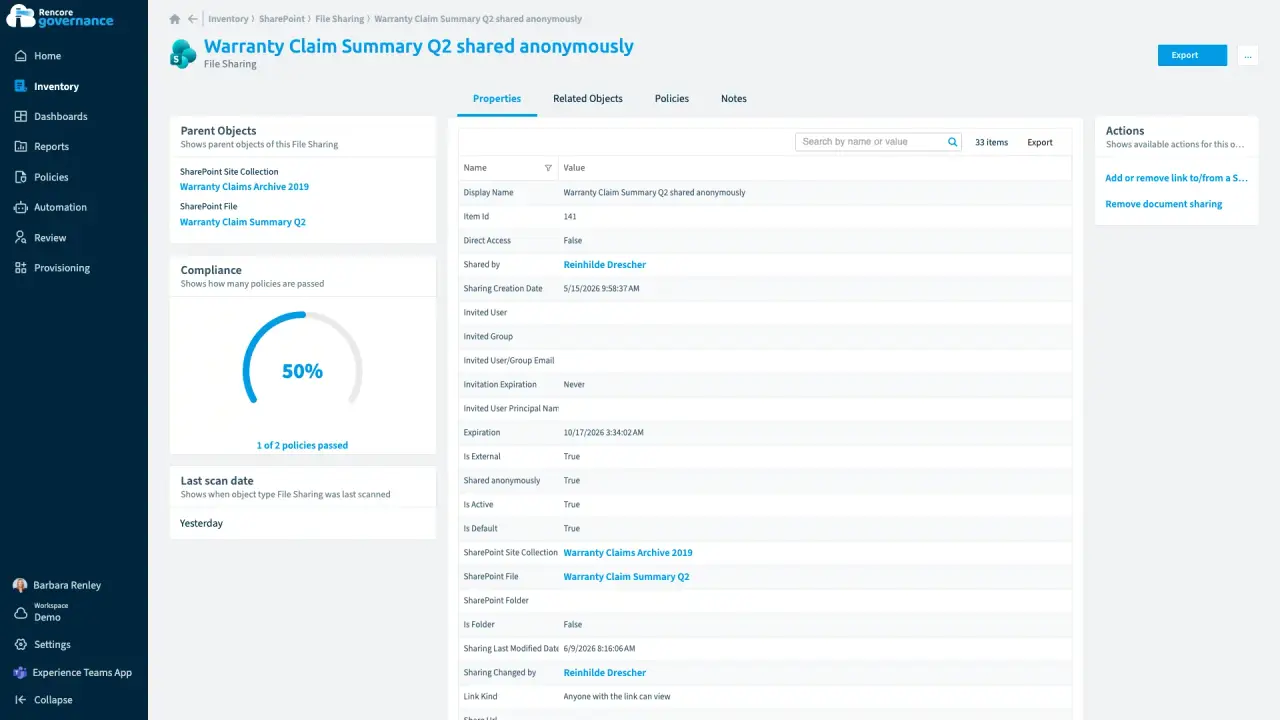
Every file and every sharing link
Length: 4 minA sensitive file shared with anyone who has the link can travel anywhere, and nobody owns the fix.
- SharePoint
- OneDrive
- Access & Sharing
- Policies
- Automation
-
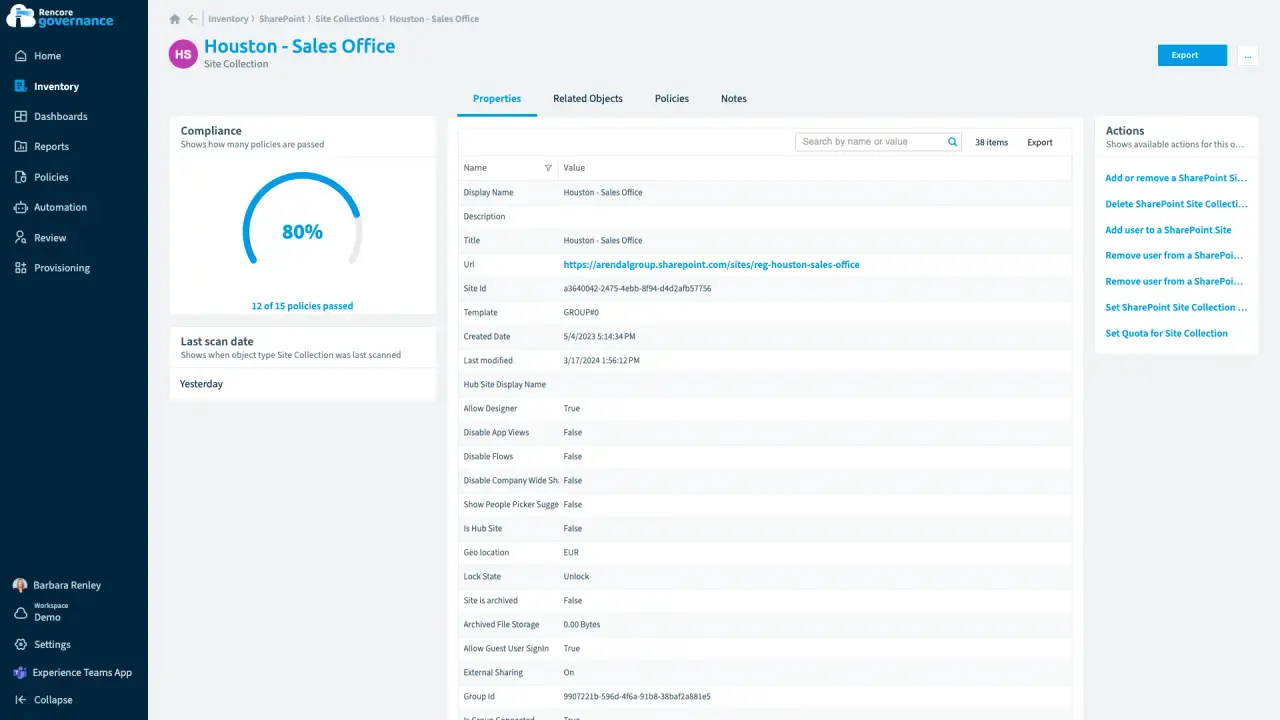
Who has access to which folder
Length: 4 minShared folders reach people nobody intended, and auditors want proof of who can open them.
- SharePoint
- OneDrive
- Access & Sharing
- Reports
-
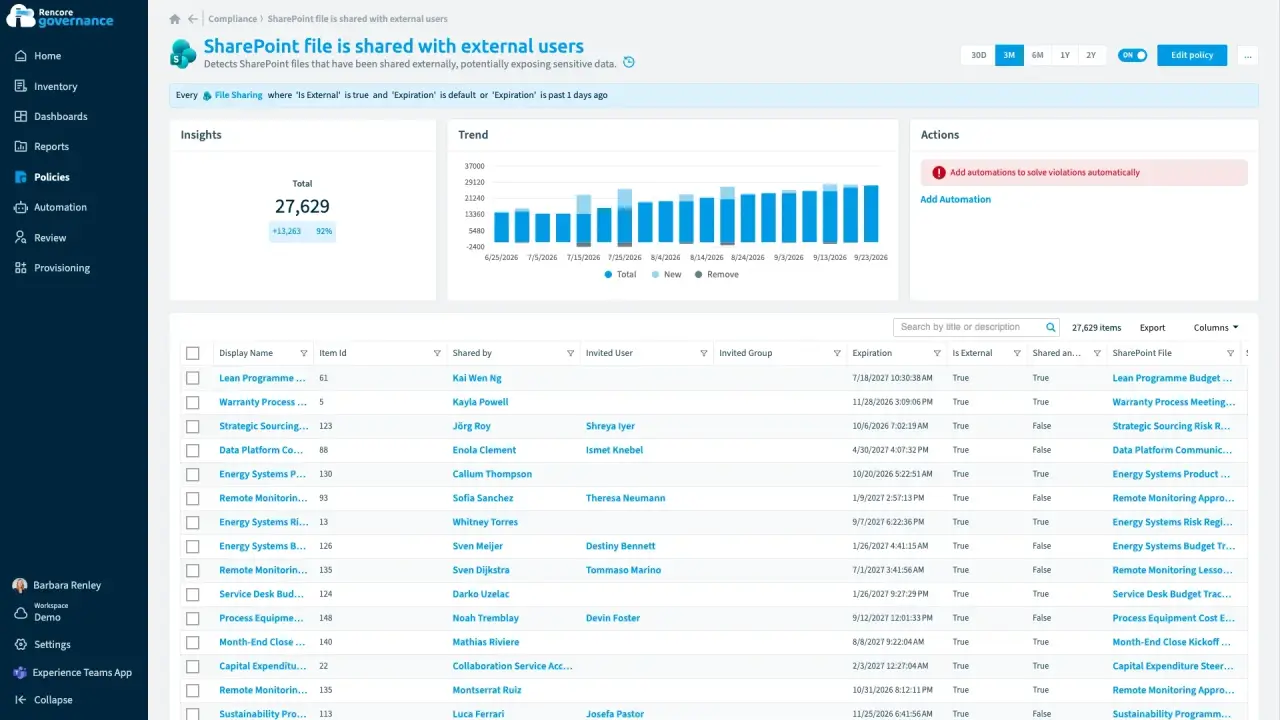
Find and fix oversharing
Length: 4 minGuests and sharing links reach further into your content than anyone intended, and nobody removes the ones that are no longer needed.
- Teams
- SharePoint
- Entra ID
- Access & Sharing
- Reviews


 Entra ID
 Last updated 8 October 2026


