






 Microsoft Copilot


Teams sprawl control is the routine that keeps Microsoft Teams, and the SharePoint sites, channels and Microsoft 365 groups behind them, in line with how they are actually used. It sets an owner, a naming rule and an end date when a team is created, reviews inactive teams on a fixed cycle and archives or deletes what nobody needs. The goal is a tenant where every team has an owner and a reason to exist.
In short
- Teams sprawl follows from self-service creation with no lifecycle attached.
- Every team nobody looks after is another place for oversharing to hide and another owner to chase.
- Inactive and ownerless teams are where cleanup pays off fastest.
- Owners and expiry at creation, plus a review cycle, keep the count down.
How Teams sprawl builds up
Creating a team takes seconds, and each one brings a Microsoft 365 group, a SharePoint site and often a Planner board with it. Retiring a team takes a decision, and nobody is asked to make it. Over a few years the tenant fills with duplicates, teams created for one event, and teams whose only owner has left the company.
The cost is more than clutter. Guests stay members long after the project ended, files sit in sites nobody reviews, and Copilot reads all of it with the permissions of whoever asks. Each orphaned team is also one more owner IT has to find before any review can start.
Step by step
Run these five steps as a quarterly routine. The first run is the cleanup; the next ones keep the tenant from filling up again.
-
Inventory every team
List all teams with their connected SharePoint site and Microsoft 365 group, members, guests, owners and last activity. Decide from current data, never from a one-off export.
-
Find inactive and ownerless teams
Flag teams with no activity in a set period, such as 90 days, and teams with no owner, one owner or only disabled owner accounts. Cleaning these up first pays off fastest, at the lowest risk.
Tip: A team with a single owner is one departure away from having none. Ask single owners to add a second one before it becomes a problem.
-
Set owners, naming and expiry
Require at least two accountable owners, a naming convention and a review or expiry date for every new team, ideally through a request process with templates. Add owners and dates to existing teams as part of the first review.
-
Review inactivity on a cycle
Ask owners on a schedule to keep, archive or delete each inactive team, and escalate to their manager when they do not answer. A one-off cleanup regresses within months, while a cycle keeps the tenant lean.
-
Archive or delete with an audit trail
Archive confirmed-stale teams first, so they can be restored if someone still needs them, and delete only after a grace period. Route both through approval where the content is sensitive, and keep a record of who decided what.
Connectors in this How-to
Each connector page in the Rencore docs lists the objects, policies, reports and actions behind these steps.


Watch it in Rencore
Short narrated product guides that play in your browser, with no sign-in.
-
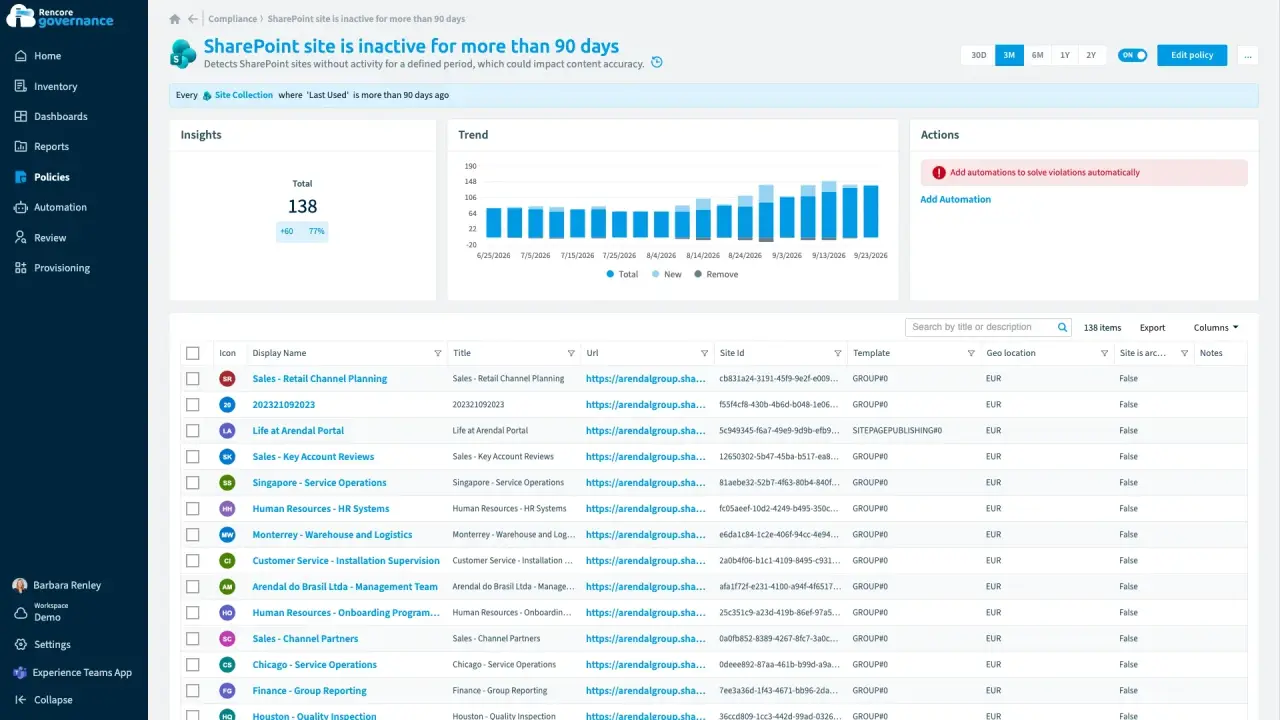
Archive inactive workspaces
Length: 5 minUnused teams and sites pile up because nobody decides whether to keep or archive them.
- Teams
- SharePoint
- Sprawl & Lifecycle
- Reviews
- Policies
- Automation
-
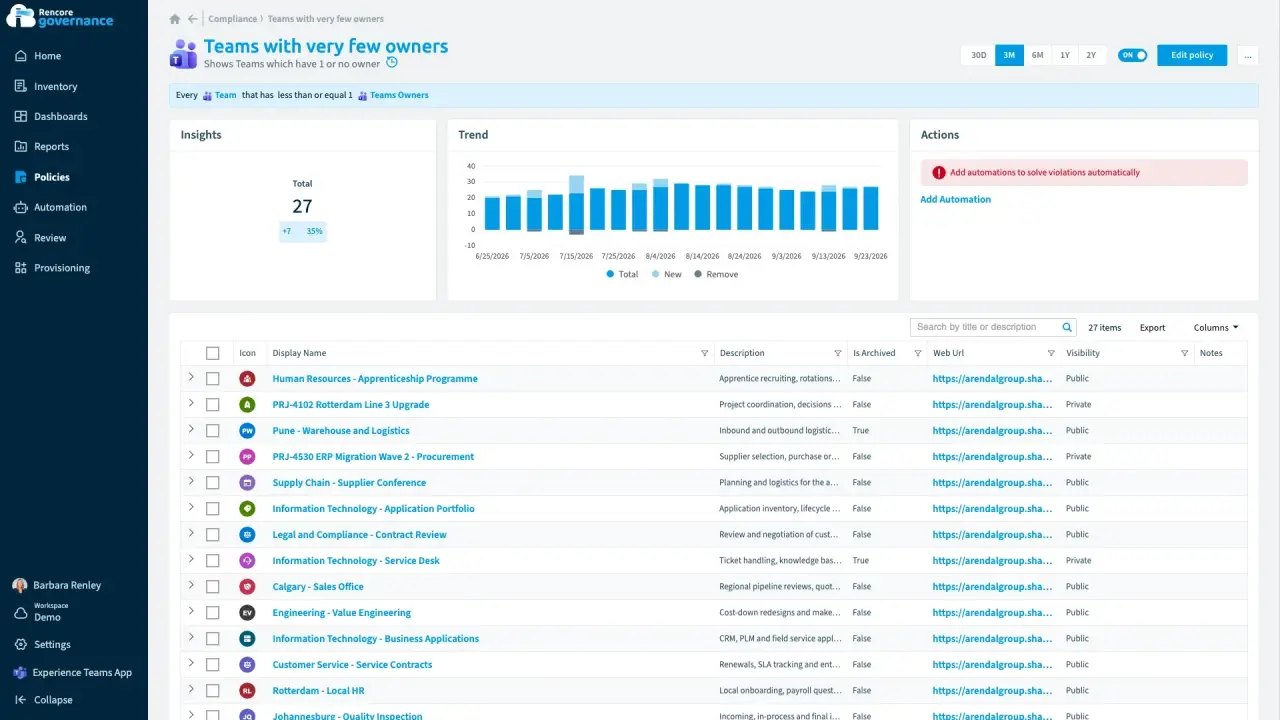
Fix ownerless workspaces with manager escalation
Length: 6 minTeams lose their owners when people leave or change roles, and nobody is left to decide what happens to them.
- Teams
- Entra ID
- Sprawl & Lifecycle
- Policies
- Automation
-
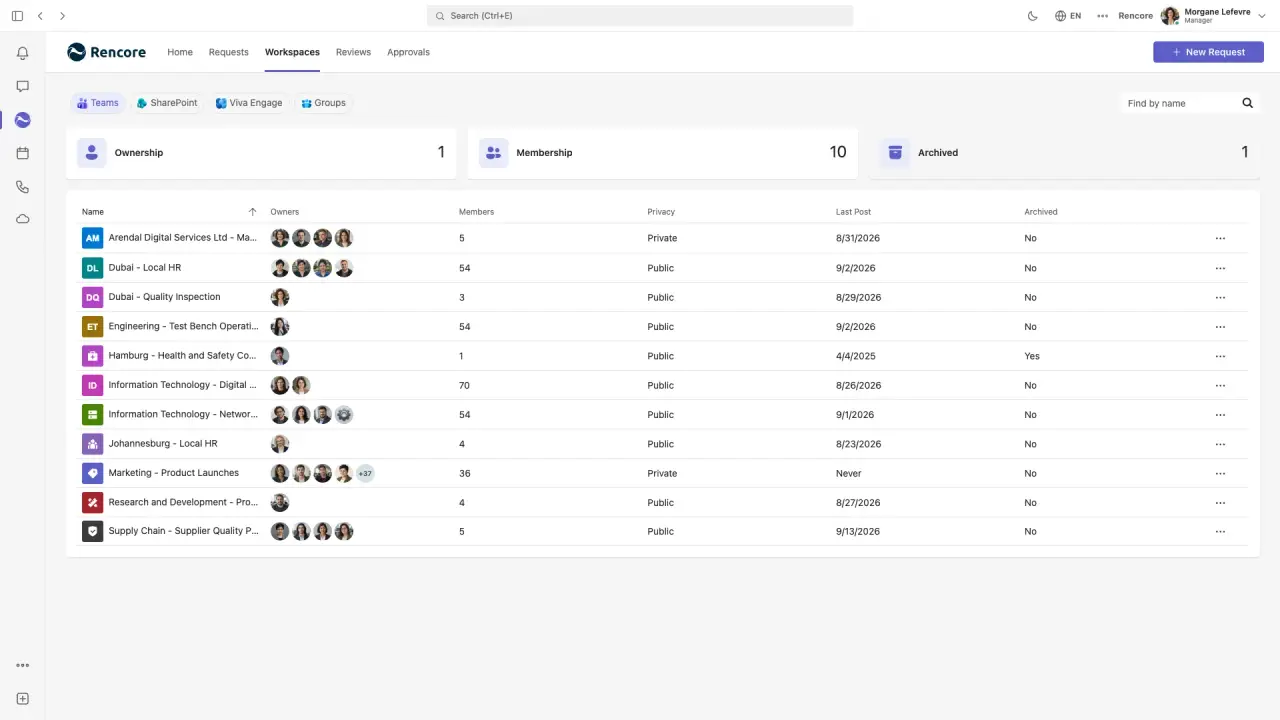
The owner who adds a second owner herself
Length: 4 minA team with a single owner is one departure away from having no owner at all.
- Teams
- Sprawl & Lifecycle
-
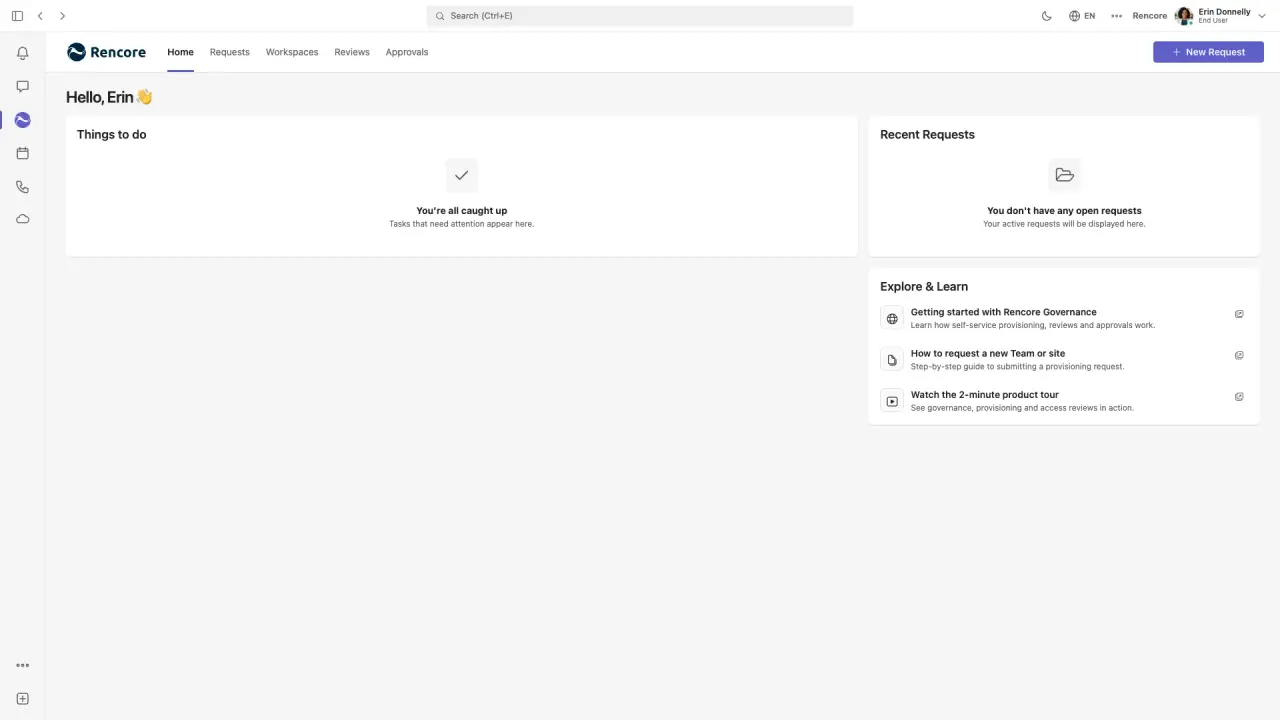
Request a governed workspace in Microsoft Teams
Length: 4 minTeams created without rules arrive with a single owner, no naming convention and no label, and fixing them afterwards is slow.
- Teams
- Provisioning


 Entra ID

Last updated 8 October 2026


