



The lines between individual and team collaboration tools often blur, which creates real governance and security risks. A simple user question like “Should this file be in SharePoint or OneDrive?” can influence your entire data lifecycle, compliance posture, and future AI readiness.
This guide answers common questions such as what is the difference between SharePoint and OneDrive, when to use each platform, and whether OneDrive and SharePoint are the same in areas like file sharing, permissions, and governance. It clarifies the distinct roles of OneDrive vs. SharePoint and provides a strategic framework for IT leaders to manage both platforms effectively and securely.

When to use OneDrive or SharePoint
The choice between SharePoint and OneDrive hinges on a simple principle: ownership and purpose.
- Use SharePoint for documents and files that belong to a team, department, or project. It is the central repository for official, collaborative work.
- Use OneDrive for an individual’s personal work-in-progress, draft documents, and files not yet ready for team collaboration. It is a user's personal file storage and work folder in the cloud.
A useful mental model is that OneDrive supports “me” (= the employee) work, meaning personal drafts and files. SharePoint supports “we” (= the team) and “us” (= the organization) work, meaning team collaboration and organizational knowledge.
What is SharePoint?
Microsoft SharePoint is a web-based collaboration platform available both as SharePoint Online and SharePoint Server for on-premises environments. It serves as a centralized digital headquarters for teams and organizations and is fundamentally designed for the many-to-many sharing of information. Think of it as a collection of team sites, communication portals, and document libraries that store files owned by the collective, not by a single user.
SharePoint team sites and communication sites
SharePoint consists of two primary templates with different purposes:
SharePoint team sites: Best for team or project collaboration. This is where multiple people work together every day. Team sites store files, lists, and team-specific resources and integrate directly with Microsoft Teams.
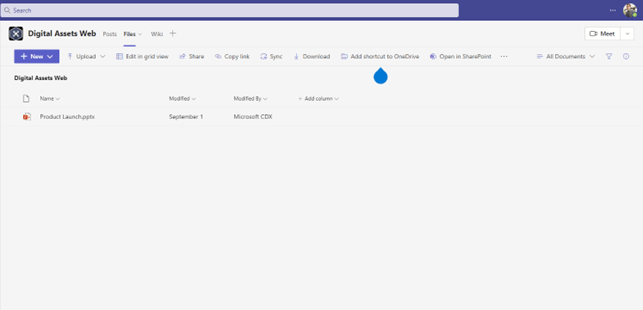
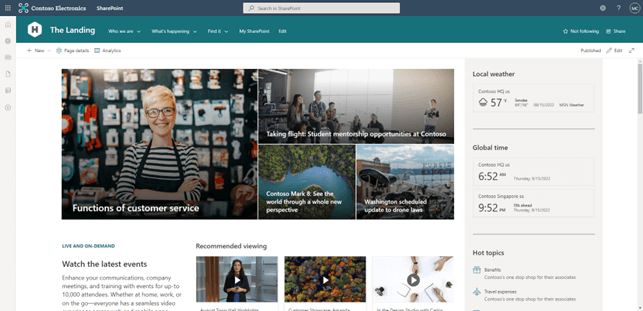
SharePoint communication sites: Best for organization-wide communication.
Communication sites deliver news, announcements, and knowledge that can be consumed by the entire company. This is where internal communication lives, such as departmental SharePoint intranets and companywide updates.
SharePoints power lies in its structure. Content is organized into sites, which can be configured with specific permissions, metadata, and lifecycle policies. These SharePoint features make it the ideal solution for:
- Project documents and deliverables
- Team resources and repeatable processes
- Departmental intranets and knowledge bases
- Company-wide communication portals
- Records management and compliance archives
SharePoint governance implications
For IT and compliance leaders, SharePoint provides a robust framework for applying governance. Its centralized nature is crucial for implementing effective SharePoint governance strategies that manage permissions, enforce data retention, and prepare content for AI tools like Microsoft Copilot.
What is OneDrive?
Microsoft OneDrive, specifically OneDrive for Business, is a cloud-based personal storage service. It is the modern equivalent of the "My Documents" folder, but supercharged with cloud capabilities. Each user in a Microsoft 365 environment receives their own OneDrive account for personal use, which is tied directly to their identity.
OneDrive is the primary location for a user to create drafts and manage personal work documents before they are ready for broader collaboration. While sharing is a key feature, it is typically more ad hoc and user-driven compared to SharePoint's structured approach; users often rely on OneDrive to quickly share files with colleagues before moving them into SharePoint.
OneDrive's user experience strengths
Compared to many other cloud storage solutions, OneDrive stands out with:
- Deep integration with Windows File Explorer and Mac Finder
- Built-in offline sync capabilities
- A tight connection to Teams and the Microsoft 365 ecosystem
- Simple ad-hoc sharing for quick collaboration
- Cross-device availability for travel or remote work
Ideal use cases for OneDrive
Common OneDrive use cases include:
- Drafting reports and presentations before sharing
- Storing personal work notes and reference materials
- Uploading personal project files not yet ready for team collaboration
- Sharing a file with one or two colleagues for quick feedback
- Accessing work files offline with OneDrive Sync
- Working across devices and locations without manual file transfers
OneDrive governance implications
Since OneDrive content is owned by the individual, governance is more decentralized. Classification and sharing often depend on user behavior, which introduces variability and requires tenant-wide guardrails.
OneDrive vs. SharePoint: Differences and similarities
While their core purposes differ, SharePoint and OneDrive are built on the same Microsoft 365 foundation, leading to several key similarities. However, their differences are what truly define their roles.
Similarities of SharePoint and OneDrive
- Built on Microsoft 365: Both services are integral parts of the Microsoft 365 ecosystem, sharing the same underlying security, identity, and compliance infrastructure.
- Support essential file actions: In both SharePoint and OneDrive, users can access files from any device, save files directly to the cloud, and delete files according to organizational policies and retention rules.
- Support co-authoring, version control, and syncing: Both platforms allow multiple users to edit documents simultaneously in real-time, automatically save version histories, and sync files to local devices for offline access.
- Enforce Microsoft 365 permissions and labels: Security policies, sensitivity labels, and data loss prevention (DLP) rules configured in the Microsoft Purview compliance portal can be applied to files stored in either location.
Differences between SharePoint and OneDrive
The fundamental differences in the SharePoint vs. OneDrive debate come down to ownership, sharing models, and governance structure.
| Criteria | SharePoint | OneDrive for Business |
| Ownership | Team or organization: SharePoint files are owned by the SharePoint site, which persists even if team members change. | Individual user: OneDrive files are owned by the user. When a user leaves, their OneDrive is typically deprovisioned. |
| Sharing model | Structured and centralized: Permissions are managed at the site, library, or folder level, often by a site owner. | Ad hoc and decentralized: Sharing is initiated by the individual file owner, often via direct links. |
| Governance | Centralized: Designed for top-down governance policies, metadata, and lifecycle management. | Decentralized: Relies more on user behavior and overarching tenant-level policies. |
| AI agents | Platform for advanced AI: SharePoint Premium introduces content processing and AI-driven automation. | Host for personal automation: Users can create Power Automate flows tied to their personal files. |
Governance of SharePoint and OneDrive
For CIOs, CDOs, and Legal Counsels, understanding the governance nuances of each platform is critical. Without proper oversight and data governance, day-to-day file management can become inconsistent across SharePoint and OneDrive and lead to data sprawl, security gaps, and uncontrolled costs.
| Governance area | SharePoint | OneDrive |
| Visibility | Centralized, easy to audit | Decentralized, scattered across individual accounts |
| Permission management | Centralized, easy to audit | User-driven ad-hoc sharing |
| Classification | Supports enforced metadata and automated labeling | Relies heavily on user-driven classification |
| Lifecycle | Supports retention, records management, and structured archives | Lifecycle tied to the user and offboarding process |
| AI and automation | Content understanding, AI enrichment, SharePoint Premium | User-created flows and personal automations |
| Risk level | Oversharing within teams or sites | Orphaned content, personal agents, sharing to external people |
Visibility
SharePoint provides centralized visibility. Administrators can easily view all sites, assess storage, and audit permissions across the organization. This structure makes it easier to manage and secure team-based content.
OneDrive, by its nature, is decentralized. Each user has their own private space, making it harder for IT to track file sharing, identify orphaned content from former employees, or get a holistic view of data risk without specialized tools.
Access and classification
SharePoint is built for structured access and classification. You can enforce metadata tagging on documents, apply sensitivity labels automatically based on library settings, and implement strict DLP policies. This helps ensure that critical business documents are consistently protected.
OneDrive relies more on user-driven classification. While tenant-wide policies apply, the initial act of labeling a document or restricting a share is often left to the end-user. This creates a potential for human error and inconsistent policy application.
AI governance
The rise of AI and agents like Copilot introduces a new layer of governance complexity.
SharePoint Premium is becoming a hub for file-triggered AI agents and advanced content processing. This offers immense business value but also requires strict oversight to prevent misconfigured SharePoint agents from mishandling sensitive data.
OneDrive is a common host for user-created Power Automate flows. These "shadow agents" often operate outside of IT's view, connecting to various services and creating potential security vulnerabilities or data leakage paths. A key concern is the risk of orphaned or misconfigured agents continuing to run after an employee leaves.
Cost and sprawl risks
Both platforms are affected by Copilot agent sprawl. Uncontrolled creation and use of AI agents can lead to unexpectedly high API costs, especially with pay-as-you-go Copilot flows. These shadow agents can also bypass established security policies.
Storage cost is another critical factor. While SharePoint storage is often pooled and centrally managed, OneDrive storage costs can easily spiral out of control. Without visibility into usage, organizations may be paying for terabytes of redundant, trivial, or orphaned data in former employees' accounts.
Governance best practices for SharePoint and OneDrive
To effectively manage the SharePoint vs. Onedrive ecosystem, IT leaders should implement a unified governance strategy.
-
Enforce least privilege: Regularly audit permissions in both SharePoint libraries and OneDrive accounts. Ensure users only have access to the data they absolutely need.
-
Require approval for AI agent creation: Implement a process that requires IT or business unit approval before users can create Power Automate flows or other agents that access company data.
-
Automate offboarding processes: Establish an automated workflow to handle a departing user’s OneDrive content. This should include transferring critical files to a manager or a SharePoint archive before the account is deleted.
-
Use a centralized governance platform: Employ a solution like Rencore Governance to gain complete visibility, automate policy enforcement, receive alerts on risky configurations, and conduct regular audits across your entire Microsoft ecosystem.
Take your SharePoint governance policies to the next level. Get the free whitepaper “SharePoint Framework for Administrators” and learn how to manage SPFx safely and effectively across your environment.
Centralized governance for OneDrive and SharePoint with Rencore
Managing SharePoint and OneDrive at scale is difficult. Permissions change constantly, users overshare files, personal OneDrives become orphaned, and user-created automations introduce new risks. Manual oversight cannot keep up.
Rencore Governance provides a unified way to control both platforms. It offers:
- Complete visibility into all SharePoint sites and OneDrive accounts
- Detection of oversharing, risky links, and external access
- Insight into orphaned or inactive content and missing owners
- Monitoring of SharePoint-connected and OneDrive-triggered Power Automate flows
- Consistent policy checks across both platforms
- Automated remediation such as removing links, notifying owners, or triggering access reviews
Start your free Rencore Governance trial to get instant visibility into your SharePoint and OneDrive environment and automate the governance tasks that matter most.
Bringing SharePoint and OneDrive together for secure, scalable collaboration
The SharePoint vs. OneDrive discussion isn't about choosing a winner. It's about understanding their distinct, complementary roles: SharePoint for the team, OneDrive for the individual. For leaders in IT, legal, and innovation, the real challenge is not deciding which tool to use, but how to govern both cohesively. By implementing clear policies, automating oversight, and leveraging a centralized governance platform, you can ensure both tools drive productivity without introducing unacceptable risk.
If you are keen to learn more about governing SharePoint and OneDrive alongside other Microsoft 365 services, I recommend reading the following free whitepaper “Complete visibility across Microsoft 365“. It offers best practices to centralize and automate your governance approach in order to maintain control over multiple Microsoft 365 services.

Frequently asked questions (FAQ)
Is OneDrive and SharePoint the same?
No. OneDrive and SharePoint serve different purposes. OneDrive is personal file storage for drafts and private documents, while SharePoint supports business teams, shared documents, and structured collaboration.
What is the main difference between SharePoint and OneDrive?
The core difference between OneDrive and SharePoint is ownership. SharePoint content is owned by a business team or the organization, making it ideal for collaborative, long-term projects. OneDrive for Business content is owned by the individual user, serving as their personal cloud storage for work-in-progress.
What are the pros and cons of SharePoint vs. OneDrive?
SharePoint offers structured collaboration, features like version control, and strong data governance, but requires more administration. OneDrive is ideal for personal use, quick sharing, and working across devices, but decentralized oversight can create risks. Choosing OneDrive or SharePoint depends on ownership, visibility, and governance needs.
What tools help manage SharePoint and OneDrive governance?
Organizations use SharePoint governance tools and OneDrive governance solutions to monitor permissions, secure shared documents, and enforce policies. Rencore Governance provides centralized visibility across SharePoint and OneDrive, detects oversharing, automates reviews, and ensures compliant access files, save files, and delete files operations across the Microsoft ecosystem.
When should you move a file from OneDrive to SharePoint?
You should move a file from OneDrive to SharePoint when it is no longer a personal draft and becomes a collaborative document or an official record that the team or department needs to access, edit, or retain.
How do SharePoint vs. OneDrive vs. Teams work together?
Microsoft Teams acts as the hub for collaboration. The Files tab in a Team is a SharePoint document library, where shared documents are stored. Private drafts often start in OneDrive and can be moved to SharePoint when ready for team access.