



In most of my blog posts, I encourage the usage of the Power Platform.
The promise of the Power Platform is that ultimately, anybody can be a Business Applications maker. Empowering everyone to achieve more with less using the Power Platform is a key part of the solution to the developer shortage.
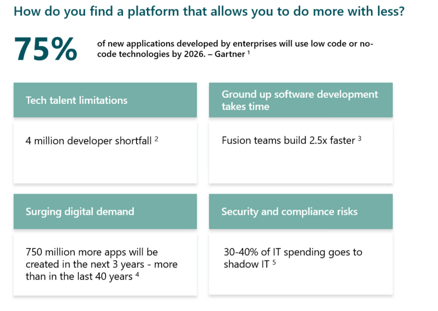
But with this great empowerment, many (IT) administrators' first reaction is to minimize usage as much as possible. Bad memories about abandoned local Access Databases, extended Excel files with macro nightmares, unchecked sprawl of SharePoint Sites, and untamed expansions of Microsoft Teams teams… and this is merely the Microsoft part of your application landscape.
However, what makes the Power Platform even more powerful is that everything is governed and authenticated through Azure Active Directory (Azure AD). Because everyone needs to sign in with their Azure AD account to use the service, an administrator has deep insights into almost everything makers and users do.
The Power Platform is governable, automatable, auditable, and manageable by default
Microsoft already shares admin and governance best practices that are a great start when embracing the potential of the Power Platform without feeling like a helpless spectator from the sidelines.
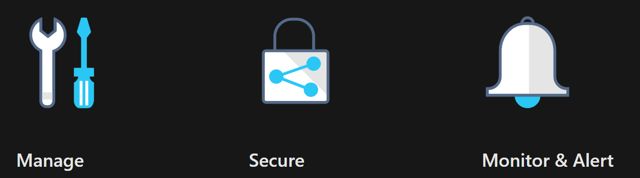
The basic approach of these three stages has proven quite useful and understandable for most administrators.
Power Platform Admin Center
This journey often starts with the Power Platform Admin Center. This specialized administrator portal is the first place to go if you want to start with administering the Power Platform. The first insights about your Power Platform will be visible here. In addition to insights, many features and settings are configurable in the Power Platform Admin Center, with more added every few months. Several layers of the Power Platform have settings that are important to govern:
Tenant Settings (for example, limiting the creation of (Trial) Environments)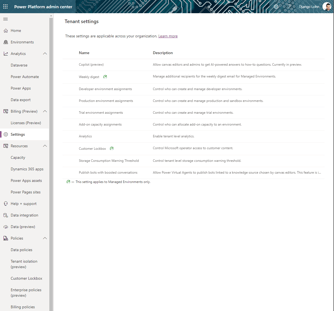
- Environment Settings (for example, access, Data Loss Prevention, and auditing configuration for specific Environments)
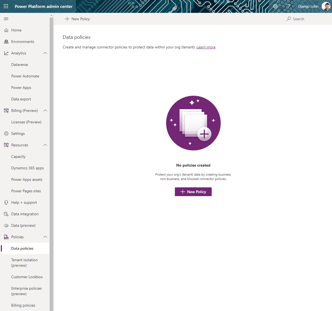
- Settings within the resources of these Environments (for example, access and management of Power Apps and Power Automate Flows)
In addition to the clickable user interface of the Power Platform Admin Center, there are out-of-the-box Power Platform Management connectors and even PowerShell support. The PowerShell cmdlets contain most (if not all) of the functionality of the Power Platform Admin Center, and whenever a new functionality is added, it will first appear here… also, if new additions are not documented (yet).
After these first steps in the Power Platform Admin Center and some exploration of the PowerShell cmdlets, the Center of Excellence Starter Kit is often the next step. With this Microsoft Community-driven kit, administrators gain more insights, extend the range of clickable configuration options, and have many options to build a true Center of Excellence.
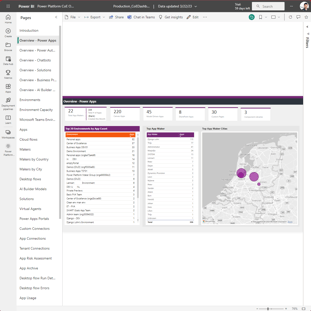
The concept of a Center of Excellence means investing in and nurturing organic growth while maintaining governance and control. A CoE is designed to drive innovation and improvement, and as a central function, it can break down geographic and organizational silos. More on this topic in the next blog post
There will always be situations where the out-of-the-box options are not enough or not very user-friendly… After all, administrators are users too!
The Microsoft 365 Governance Automation solution of Rencore has included important parts of Power Apps and Power Automate to give insights and simplify compliance efforts throughout the whole Microsoft 365 environment.
A note from Rencore
For more information on administering the Power Platform, we recommend the following Rencore whitepaper: “Microsoft Power Platform governance best practices”. The whitepaper helps you build a governance strategy that enables controlled Power Platform adoption and self-service.