



Most organizations have onboarding down to an art form. Accounts get provisioned, licenses get assigned, and new hires are up and running within hours. But when someone leaves? That process often gets rushed, delegated to an outdated checklist, or skipped entirely until something breaks.
In 2026, that gap is bigger than it looks. Microsoft 365 isn't just email and SharePoint anymore. Departing employees leave behind Copilot interaction histories, shared prompts, Power Automate flows, and Copilot Studio agents that can keep running, surfacing sensitive data, and incurring costs long after their last day.
This guide covers everything your team needs to handle Microsoft 365 offboarding correctly: from blocking sign-in to deactivating AI agents, with an easy-to-follow step-by-step offboarding checklist.
Key takeaways:
- Manual M365 offboarding leaves orphaned accounts, active Copilot licenses, and running agents that no one is watching.
- A complete 2026 offboarding checklist must include Copilot license revocation, agent review, and Power Automate flow audits.
- Rencore Governance helps IT admins centralize and automate the entire process in a single platform.
Why Microsoft 365 user offboarding matters for security
User offboarding is one of the most direct ways to prevent unauthorized access to an organization's data. When an employee leaves, their identity doesn't automatically disappear from your environment. Unless someone takes deliberate action, their Microsoft Entra ID account stays active, their licenses keep ticking, and their access to Teams, SharePoint, OneDrive, and Copilot remains intact.
A few numbers worth keeping in mind:
- Orphaned accounts are consistently ranked among the top vectors for credential-based attacks and insider threats.
- Industry benchmarks indicate that the average time between an employee's departure and access revocation exceeds 3 days when offboarding is handled manually.
- Organizations waste an estimated 30% of SaaS license spend on inactive or departed users. With Copilot licenses running at $30+ per user per month, that adds up fast.
A proper Microsoft 365 offboarding process closes these gaps. It protects your data, keeps you compliant, and saves money you're probably already losing.
What are the risks of inadequate Microsoft offboarding?
Skipping or rushing Microsoft 365 offboarding leaves your environment exposed in predictable ways. Former employees retain active credentials, automated processes continue to run without owners, and sensitive data remains accessible to people who no longer need it. Here are the specific risks to understand.
Data breaches and unauthorized access
If user access isn't revoked when someone leaves, it stays open. Former employees can reach SharePoint sites, Teams channels, OneDrive files, and shared mailboxes, intentionally or not. Attackers can exploit those same stale credentials to get in without resistance.
Compliance violations and legal implications
GDPR, HIPAA, ISO 27001, and most industry frameworks require you to control who can access regulated data and when. A former employee accessing customer records from a still-active account isn't just a security issue but a potential compliance violation. Failure to revoke access in a documented, timely way can result in regulatory fines and audit findings.
Reputational damage and loss of customer trust
Data breach headlines follow a predictable pattern: incident, disclosure, customer backlash, long recovery. Even a single incident tied to a former employee's credentials can raise serious questions about your organization's security posture. Rebuilding trust after that takes time, resources, and often a public response you'd rather not have to make.
AI-specific risks that standard checklists miss
This is the area most organizations haven't caught up with yet.
- Copilot stores interaction history. Microsoft 365 Copilot maintains a personal interaction history for each user's account. That history, which may contain sensitive queries, internal data references, and business context, isn't automatically cleared when a license is removed or an account is disabled.
- Agents can keep running. Copilot Studio agents don't stop when their creator leaves. Without an owner, they become shadow agents, accessing knowledge sources and surfacing content with no one watching. Agents should be treated like users. They need onboarding governance and, critically, offboarding governance too.
- Prompts may contain sensitive data. Shared prompts in Microsoft 365 Copilot can contain references to internal processes, confidential documents, or regulated data. If ownership isn't transferred or the prompts aren't reviewed, that content can persist in shared workspaces accessible to the broader team.
Critical components of Microsoft 365 offboarding
A thorough Microsoft 365 offboarding process covers four foundational areas: identity, data, licenses, and devices. Getting all four right is what separates a secure offboarding process from one that leaves gaps an attacker or an auditor will eventually find.
1. User account management
The starting point for any M365 offboarding is the Microsoft Entra ID account. You need to decide whether to disable or delete it, transfer ownership of shared files and documents, and revoke all associated permissions. Timing matters here: Microsoft recommends blocking sign-in as the first step before any data migration begins.
2. Data retention and archiving
Data created or managed by a departing employee doesn't disappear, and often shouldn't. Retention policies in Microsoft Purview let you define how long the data is preserved before deletion. Archiving ensures it's available for compliance, litigation holds, or future reference without cluttering active systems.
3. License management
Reclaiming Copilot, Microsoft 365, and Power Platform licenses from offboarded users is a direct cost-recovery step. By doing so, organizations can ensure they're not paying for unused services and can reallocate licenses to new or existing employees as needed. It also ensures former employees can't continue accessing services after departure.
4. Device and application access control
Employees access Microsoft 365 from laptops, phones, and tablets. As part of offboarding, critical business data must be removed from personal devices via Microsoft Intune, and company-owned devices must be wiped or reassigned. Application permissions, including OAuth tokens and app registrations, also need to be reviewed and revoked.
The 2026 Microsoft 365 offboarding checklist
This checklist reflects what a complete M365 offboarding looks like in 2026, including the Copilot and AI agent steps that most legacy processes don't cover. Work through these in order, since several steps depend on actions taken before them.

Step 1: Disable and secure the Entra ID identity
The first action in any offboarding should be to block sign-in in Microsoft Entra ID. This immediately prevents the former employee from authenticating to any Microsoft 365 service.
Then work through the following:
- Revoke all active sessions to invalidate any tokens that are still live.
- Reset the account password to prevent credential reuse.
- Remove any elevated roles assigned to the account: Global Admin, SharePoint Admin, Teams Admin, and any others.
Step 2: Revoke Microsoft 365 and Copilot licenses
Remove all assigned licenses from the account. This includes Microsoft 365 E3/E5, Microsoft 365 Copilot, Power Platform, and any add-ons. Licenses can be reassigned to new hires or banked to reduce spend.
For Copilot licenses specifically, revoking the license blocks access but does not automatically clear Copilot interaction history. That requires additional steps covered below.
Use Microsoft Graph PowerShell to identify disabled accounts that still have active licenses assigned:
# Authenticate with Microsoft Graph
Connect-MgGraph -Scopes "User.Read.All", "Directory.Read.All", "User.ReadWrite.All"
# Fetch disabled users with active licenses
$allUsers = Get-MgUser -Select "id,displayName,userPrincipalName,accountEnabled,assignedLicenses"
$disabledWithLicenses = $allUsers | Where-Object {
-not $_.AccountEnabled -and $_.AssignedLicenses.Count -gt 0
}
# Display results
$disabledWithLicenses | Format-Table Id, DisplayName, UserPrincipalName
# Remove licenses
foreach ($user in $disabledWithLicenses) {
$licenseRemoval = @{
"addLicenses" = @()
"removeLicenses" = ($user.AssignedLicenses | ForEach-Object { $_.SkuId })
}
Set-MgUserLicense -UserId $user.Id -BodyParameter $licenseRemoval
Write-Host "Removed licenses from $($user.DisplayName)"
}
Disconnect-MgGraph
Step 3: Secure email, OneDrive, Teams, and SharePoint
- Email: Convert the mailbox to a shared mailbox so a manager or successor can access it without consuming a license. Set up a redirect if needed for continuity. Apply a litigation hold if the employee's emails are subject to legal or compliance requirements.
- OneDrive: Grant a manager access to the departing user's OneDrive content. Microsoft retains OneDrive content for 30 days after an account is unlicensed, and up to 93 days after deletion, depending on your retention settings. Transfer ownership of any business-critical files before the window closes.
- Teams and SharePoint: Identify any Teams or SharePoint sites where the departing user is the sole owner and assign a new owner immediately. Channels and sites without valid owners are a governance liability. Remove the user from all distribution lists and Microsoft 365 groups to prevent any further access to shared communications.
Step 4: Audit and reassign Power Automate flows
Departing employees often own business-critical flows: approval workflows, data sync processes, and reporting pipelines. When their account is disabled, those flows break.
For each flow owned by the departing user:
- Identify who is using it and how frequently
- Determine whether it's business-critical or can be decommissioned
- For critical flows, reassign ownership to a service account rather than another individual user
- Document the change for audit purposes
Flows tied to a personal account are a single point of failure. Reassigning them to a service account makes your automation more resilient and prevents this problem from recurring whenever someone leaves.
Step 5: Review and deactivate Copilot Studio agents
Each Copilot agent owned by a departing user needs active review:
- Check whether it's published and actively used
- Review its knowledge sources: are they still accurate, compliant, and appropriate?
- Check whether it has access to confidential SharePoint sites or sensitive data
- If the agent is business-critical, reassign it to a service account with a designated human owner
- If it's inactive or no longer needed, deactivate and delete it
Agents that run on scheduled triggers are especially important to catch here. They operate autonomously and can continue generating costs and surfacing data without anyone noticing.
Step 6: Secure devices via Intune
Use Microsoft Intune to take action on any devices registered to the departing user:
- Selective wipe removes company data from personal devices (BYOD) while leaving personal data intact.
- Full wipe resets company-owned devices to factory settings before reassignment.
- The compliance review confirms that all devices associated with the account are accounted for.
Don't assume devices will be returned and wiped manually. Intune gives you remote control over this, which matters especially for remote employees or those who leave under difficult circumstances.
Step 7: Archive, transfer, and monitor data access
The final step is making sure nothing falls through the cracks after the account is closed.
Apply retention policies in Microsoft Purview to preserve data subject to legal holds or compliance requirements. Archive the mailbox if needed. Set up access monitoring to detect any unusual activity during the transition window, especially if the account isn't deleted immediately but remains disabled.
Also, document everything. A clean audit trail showing when user access was revoked, which licenses were reclaimed, and how agents and flows were handled is essential for compliance audits and internal accountability.
Offboarding best practices for employees with Copilot licenses
Revoking a Copilot license is not enough on its own. Interaction history, shared prompts, and any agents the user created all need separate handling. Here's what to do with each.
What happens to Copilot history?
Microsoft 365 Copilot stores a personal interaction history for each user: queries, responses, and context from previous sessions. This history is tied to the user's account and is not automatically deleted when a license is revoked or the account is disabled.
To clear Copilot interaction history, you need to submit a data subject request (DSR) through Microsoft Purview or use the Microsoft 365 admin center to initiate deletion. This step is mandatory for organizations subject to strict data minimization requirements under the GDPR.
What happens to shared prompts?
Prompts shared by the departing user within their team or department don't disappear automatically. Review any shared prompts they created, especially if those prompts reference specific documents, internal processes, or confidential data. Transfer ownership or delete prompts that shouldn't remain in circulation.
What happens to Copilot Studio agents?
Copilot Studio agents don't stop when their creator leaves. They continue running unless someone explicitly deactivates them. The risk is compounded because agents often have access to SharePoint knowledge sources, external connectors, and organizational data, sometimes with broader access than the original creator intended.
Every agent should be treated as a managed resource with a named owner. Offboarding a Copilot Studio agent means reviewing its configuration, access, and usage before deciding to transfer, deactivate, or delete it.
How to revoke Copilot access safely
- Remove the Microsoft 365 Copilot license from the account in the Microsoft 365 admin center.
- Block sign-in in Microsoft Entra ID to prevent any session-based access.
- Revoke all active sessions using Microsoft Graph or the Entra ID admin center.
- Submit a DSR in Microsoft Purview to clear the interaction history if required.
How to transfer or deactivate AI agents
- For agents being transferred: Reassign to a service account with a designated human owner listed in your governance documentation. Update knowledge sources and review connector access before finalizing the transfer.
- For agents being deactivated: Turn off any scheduled triggers first, then unpublish the agent, then delete it. Confirm deletion in Copilot Studio before closing the offboarding ticket.
Microsoft 365 tools for offboarding
Microsoft 365 includes several built-in tools that cover the core offboarding steps. None of them does the full job on their own, but together they handle identity, data, devices, and the access lifecycle. Here's what each one does and where it fits in the process.
Microsoft Entra ID user management
Microsoft Entra ID (formerly Azure Active Directory) is the backbone of identity management in M365. During offboarding, it handles account disabling, role revocation, session termination, and audit log review. The Entra ID admin center gives you a central place to manage these actions, and Microsoft Graph PowerShell lets you automate them at scale.
Key capabilities for offboarding:
- Block sign-in and revoke sessions to cut access immediately
- Role-based access control (RBAC) to remove elevated permissions
- Audit logs to review recent account activity before and after departure
Microsoft Purview data governance
Microsoft Purview (the rebranded Microsoft Security and Compliance Center) handles data retention, archiving, and eDiscovery. For offboarding, it's the tool you use to define how long to preserve a former employee's data, apply litigation holds, and run searches for sensitive content.
Key capabilities:
- Retention policies to control the data lifecycle after departure
- Data archiving for compliance and legal hold requirements
- Content search to locate sensitive or business-critical data tied to the user
Microsoft Intune device management
Intune is your tool for managing the physical layer of the offboarding process. It handles remote device wipes, compliance checks, and unenrollment. All without requiring the device to be physically in hand.
Key capabilities:
- Selective wipe for personal devices (BYOD)
- Full wipe for company-owned devices before reassignment
- Device compliance policies to verify security posture across the fleet
Identity Governance Lifecycle Workflows
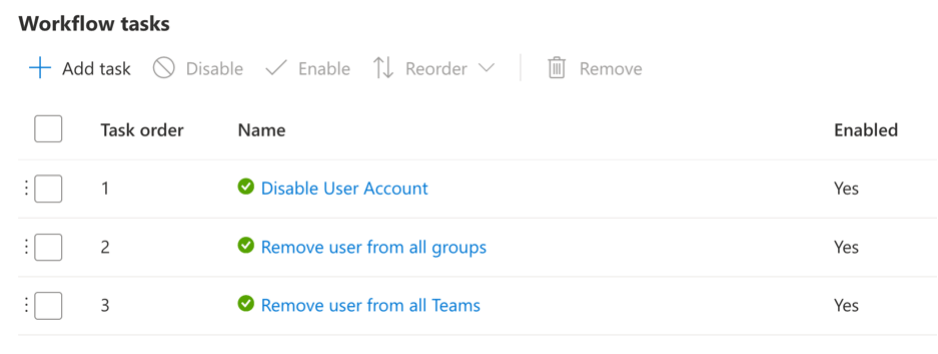
Microsoft Entra ID Governance includes Lifecycle Workflows, which let you automate offboarding tasks triggered by changes in HR systems or Entra ID attributes. When a user's employment status changes, a workflow can automatically block sign-in, send notifications to IT, and kick off downstream tasks.
Key capabilities:
- Automated workflows triggered by employment lifecycle events
- Access reviews to regularly audit and certify user permissions
- Entitlement management to revoke access packages on departure
How Rencore helps automate secure Microsoft 365 offboarding
Microsoft's native tools cover a lot of ground, but they're spread across multiple admin centers and don't provide a unified view of everything that needs to happen when someone leaves. Agents, flows, Power Apps, license assignments, guest user relationships: tracking these manually leads to missed steps and mounting governance debt.
Rencore Governance gives IT admins and security teams a single place to manage the full offboarding workflow, including the AI and Copilot layer that standard checklists leave out.
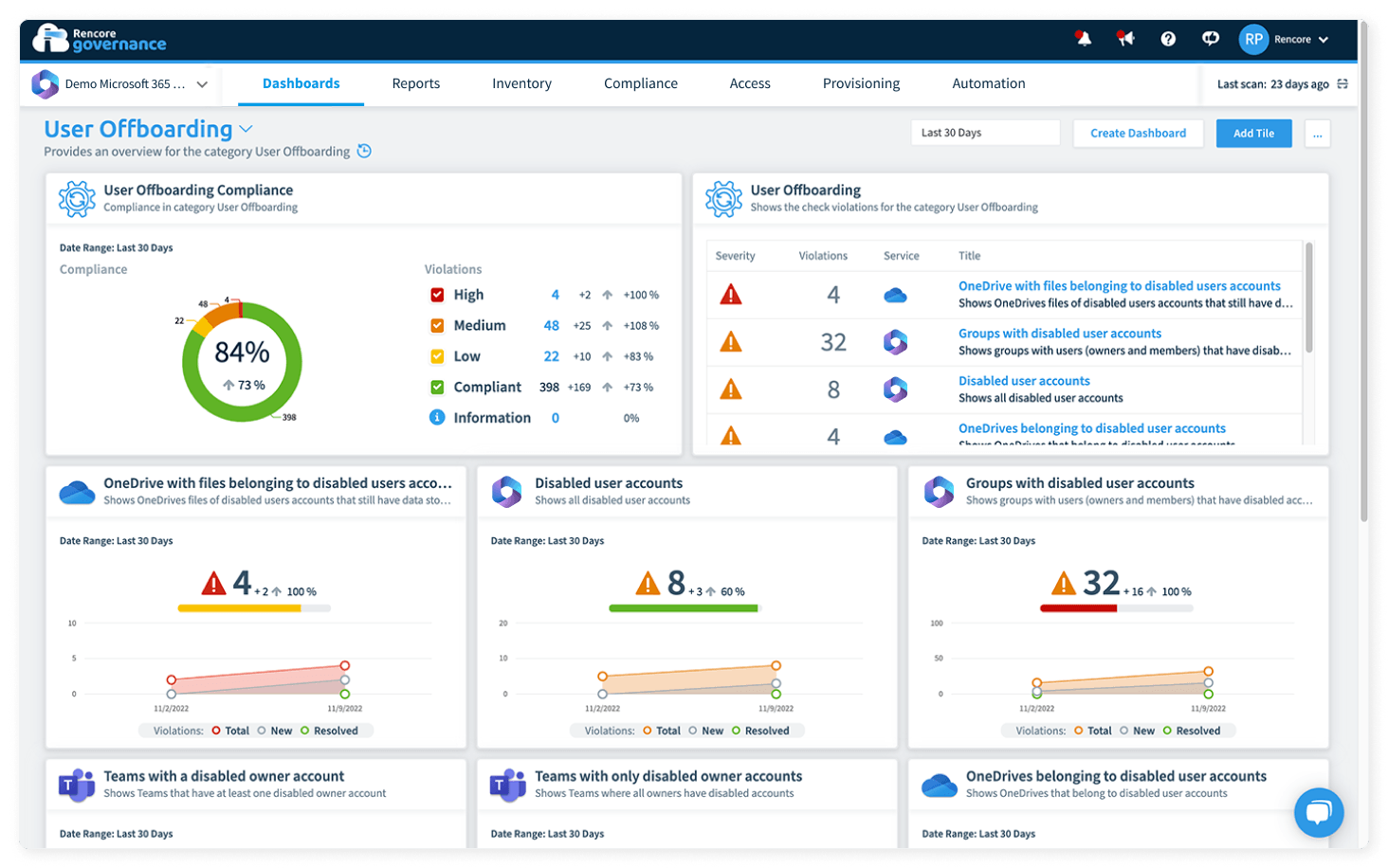
With Rencore, you get:
- An instant overview of outstanding offboarding tasks across your entire M365 environment, surfaced in one dashboard
- Pre-built, customizable policies that continuously monitor for orphaned accounts, unowned agents, inactive Copilot licenses, and stale flows
- Automated offboarding workflows that trigger when an account is disabled, walking through each required step without manual coordination
- Detailed audit-ready reporting on what was revoked, when, and by whom — directly useful for compliance reviews and internal accountability
- Centralized agent and flow governance so departing employees don't leave behind running automation and ungoverned AI tools
Rencore is built specifically for Microsoft 365 governance and designed to get value fast, typically deployed in weeks, not months.
Explore Rencore's Microsoft 365 user offboarding capabilities